Please Read: Effective August 7th, 2026, support.acmeticketing.com and developers.acmeticketing.com will go offline. Please see our new help site at
help.acmeticketing.com and
api-help.acmeticketing.com for API requests.
Note that our new helpdesk leverages SSO for a simplified login experience. You will need to have an email address registered in ACME Backoffice to reach our new site.
If you have any questions or challenges with access, please email
support@acmeticketing.com for assistance.
Steps to Add Users to the Approved Clients Group in AirWatch
Print
Modified on: Wed, 1 Jul, 2026 at 6:18 PM
Creation Date: April 6, 2023
Created By: Kadee Barrett
View most recent version on Tango
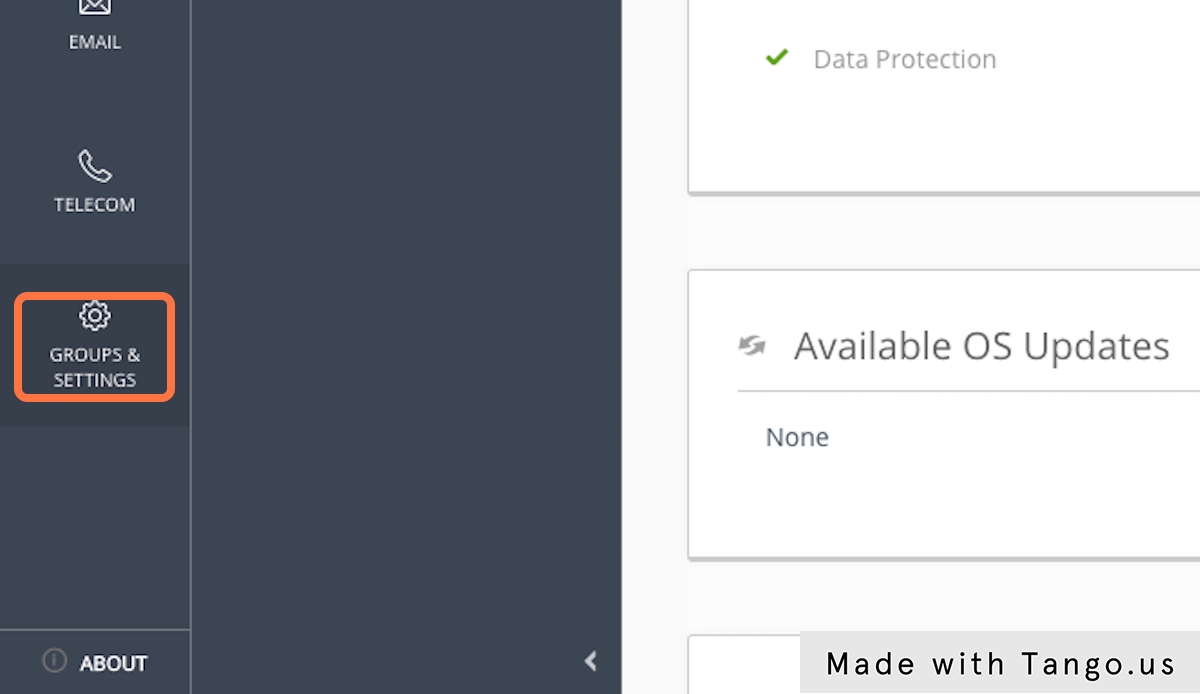
2. Click on GROUPS & SETTINGS
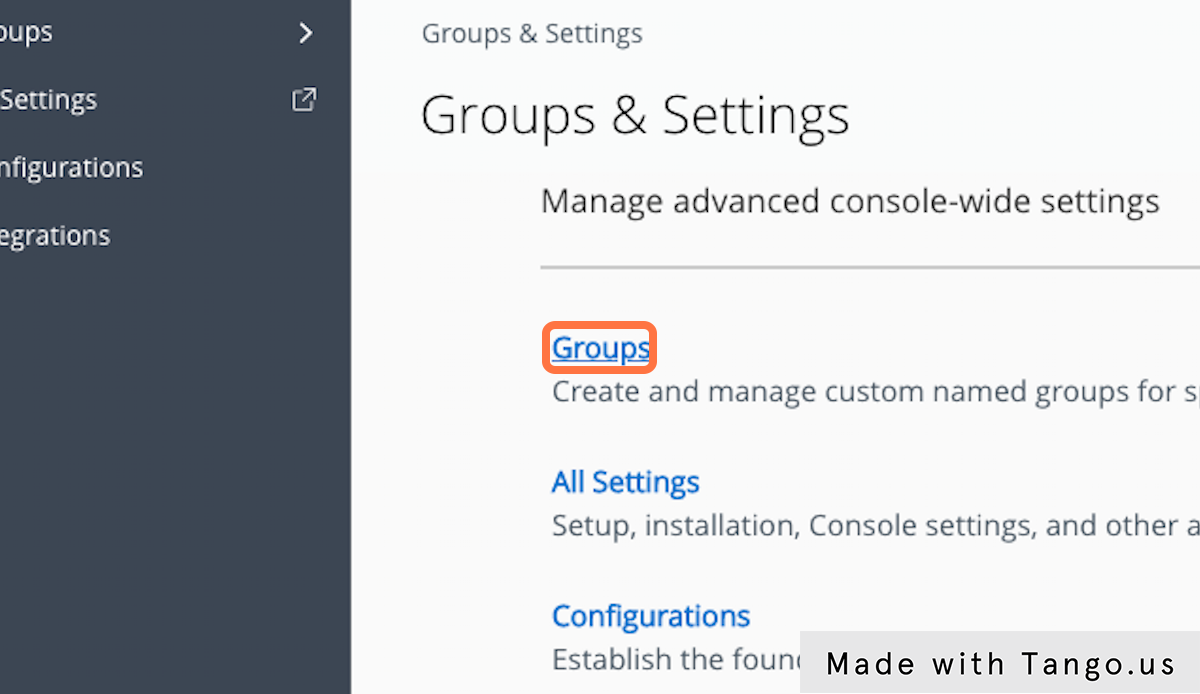
3. Click on Groups
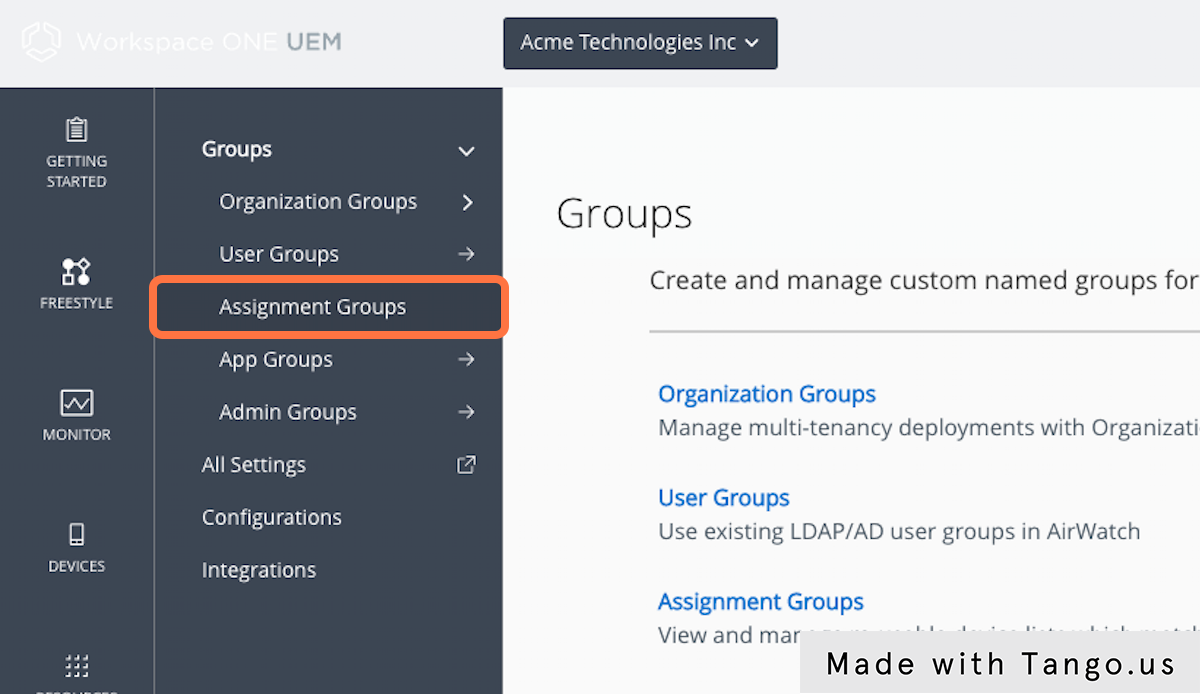
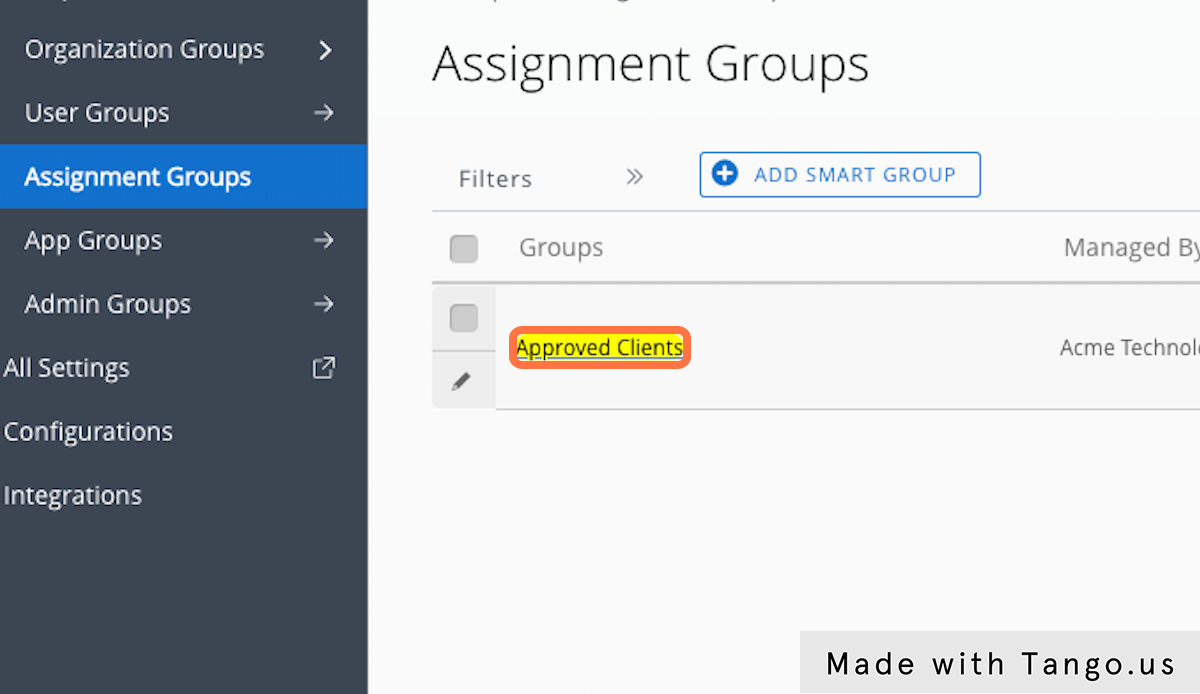
4. Click on Assignment Groups
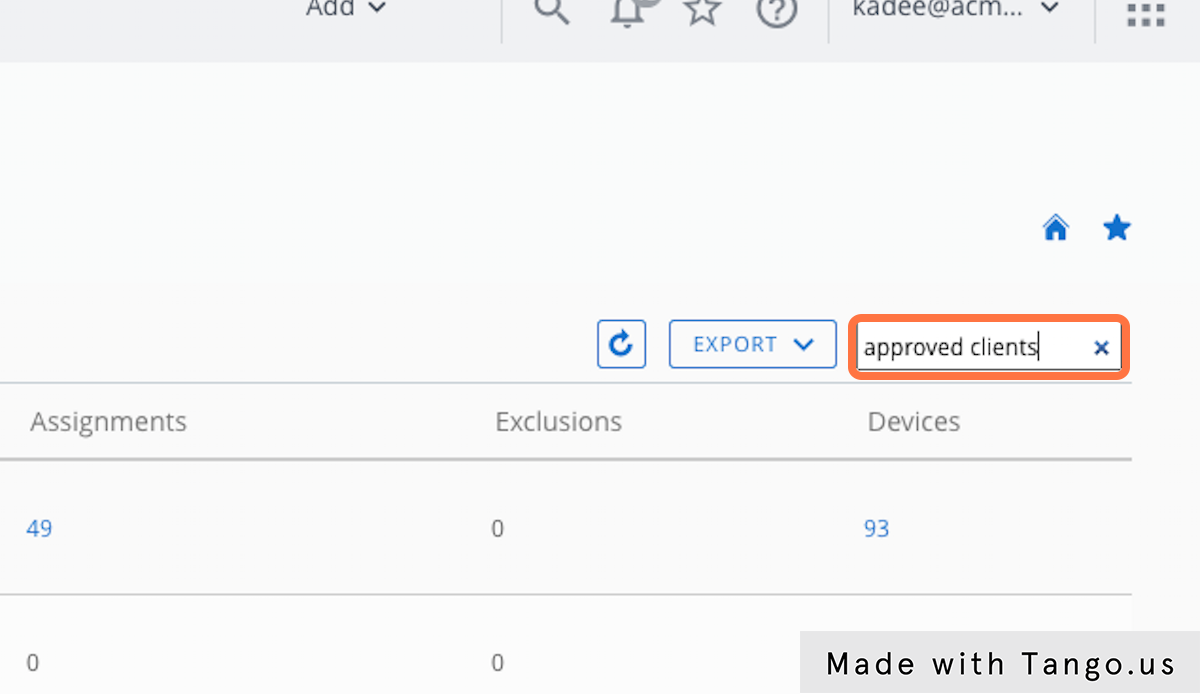
5. Search for "approved clients"
6. Click on Approved Clients
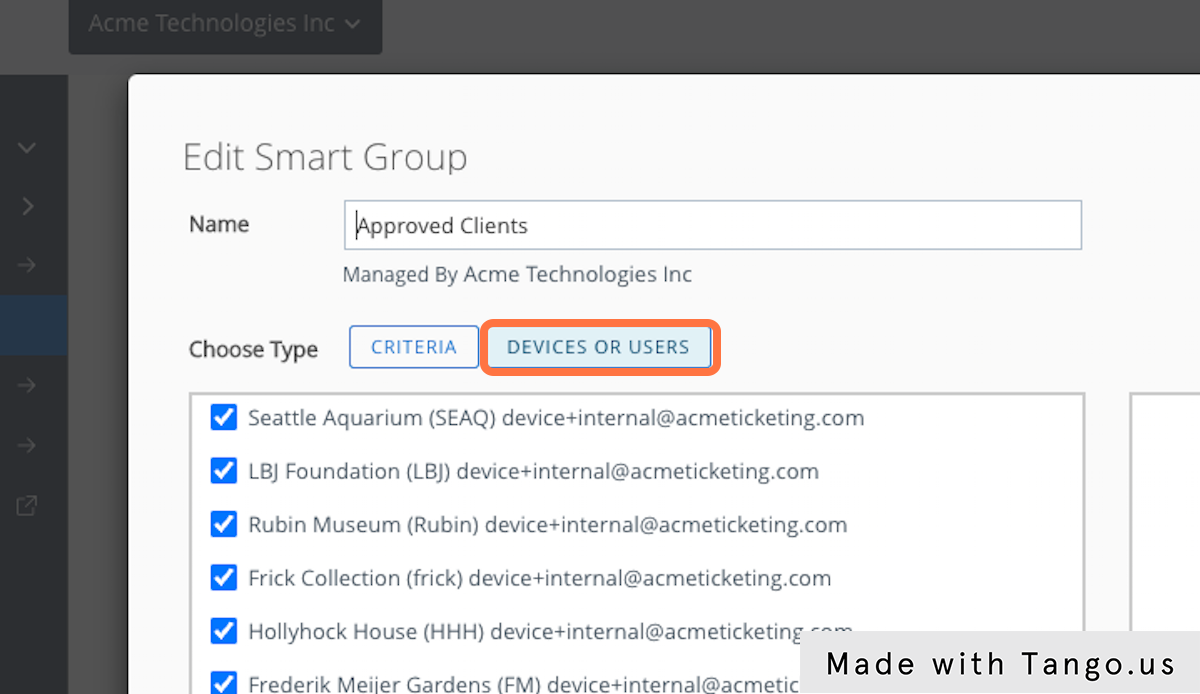
7. Click on DEVICES OR USERS
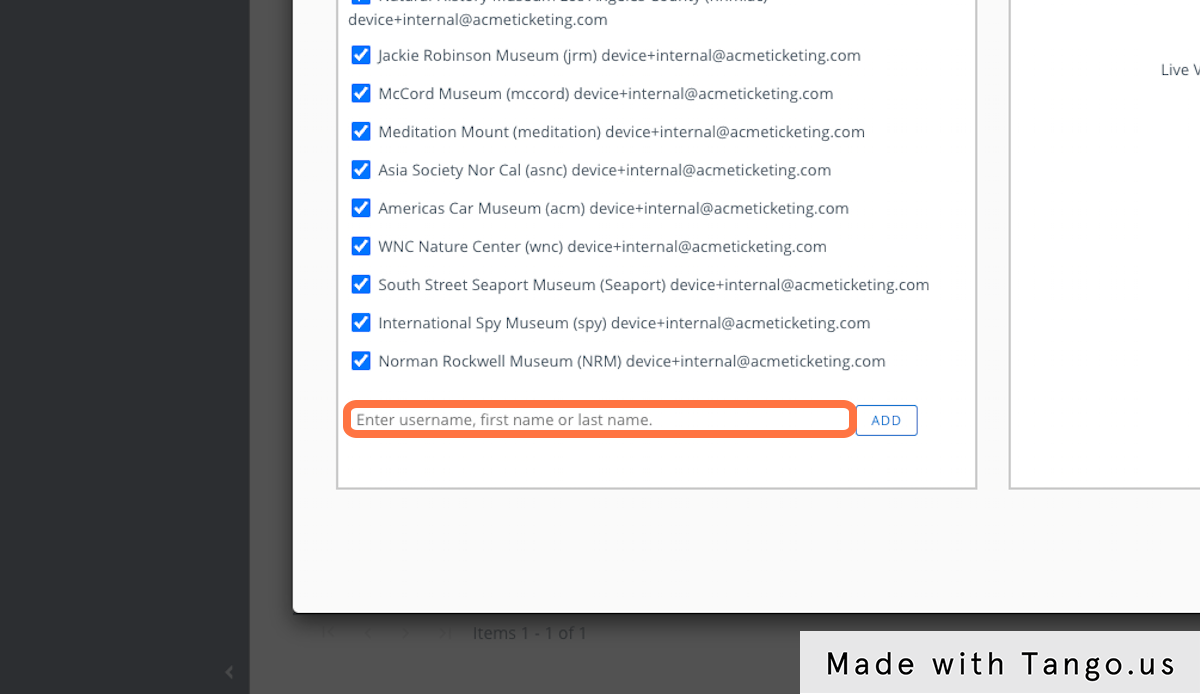
8. Click on Enter username, first name or last name. Add the new group or user
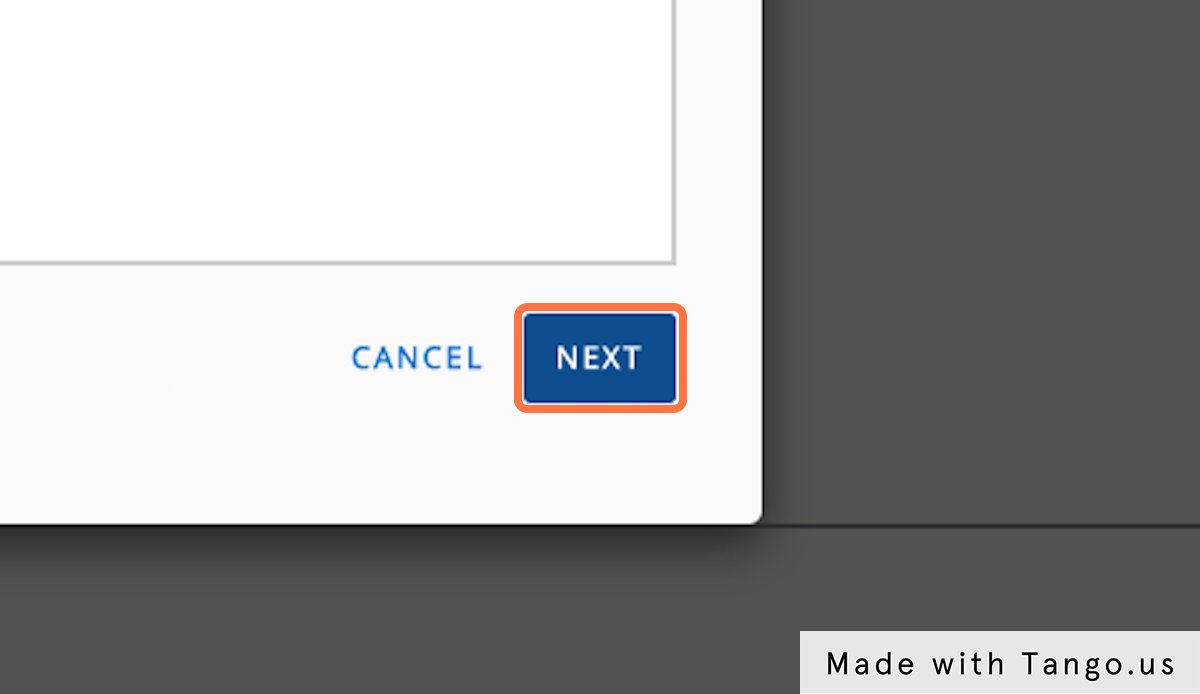
9. Click Next
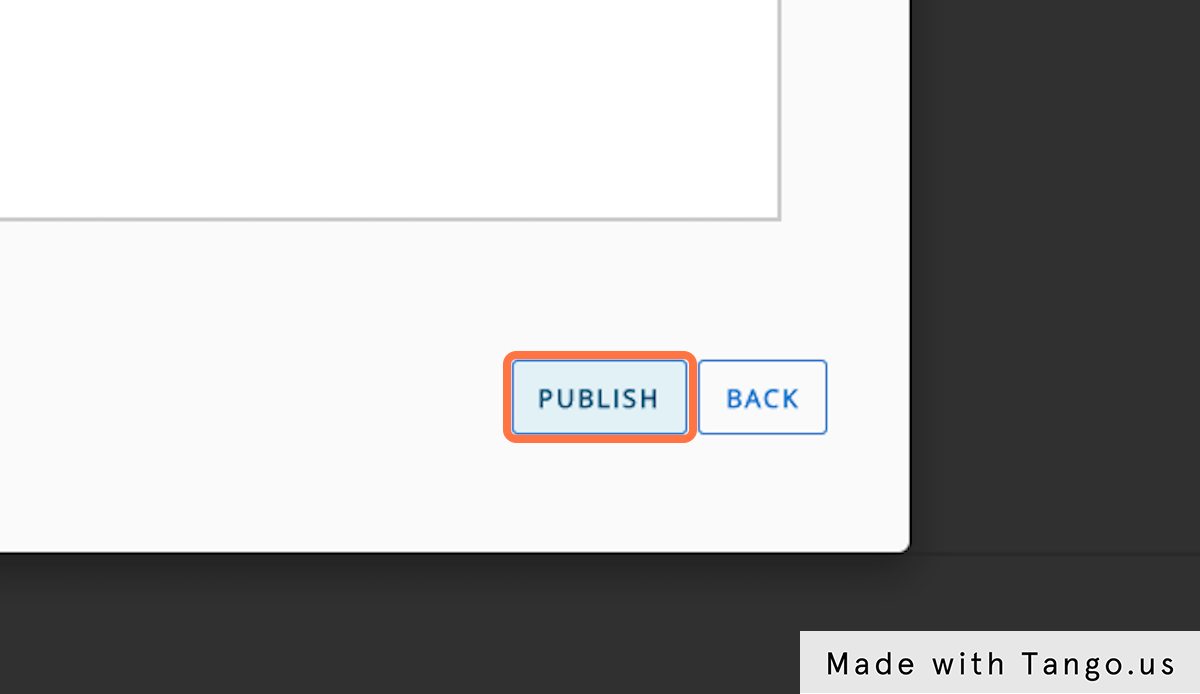
10. Click on Publish
This Workflow was created with Tango.
Did you find it helpful?
Yes
No
Send feedback Sorry we couldn't be helpful. Help us improve this article with your feedback.
